

Offline download is a Rumble Premium benefit. This feature is available on the Rumble app on iOS and Android and designed to let you watch your favorite content on the go even when you have no access to the internet.
How do I download videos?
On Feeds
Make sure you are logged into an account with a Premium subscription on the rumble app.
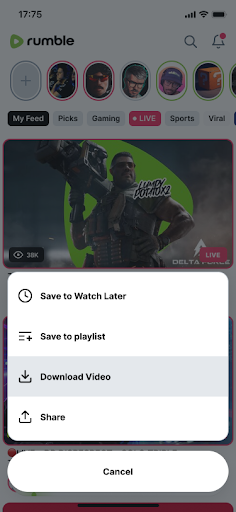
On feeds, click on the options drop down in the right corner next to the title of a video.
Click Download Video.
The video will start downloading in the background – make sure you have a good connection while downloading so that the video can be fully downloaded.
In a Video
Make sure you are logged into an account with a Premium subscription on the Rumble app.
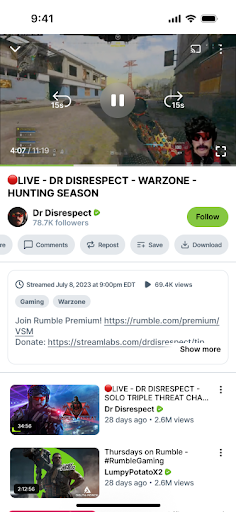
While watching a video (not live stream), scroll to the right on the section where the Like button is located, you will see the Download option after the Save button.
Click Download.
The video will start downloading in the background – make sure you have a good connection while downloading so that the video can be fully downloaded.
Where can I find my downloaded videos?
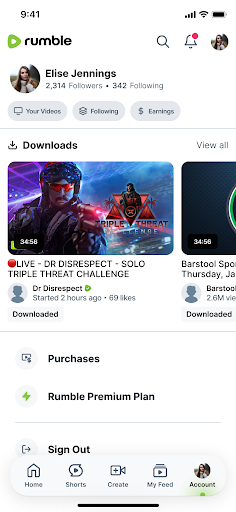
Click on the Account button in the bottom navigation bar.
Scroll down to the Downloads section (under Watch History).
Downloaded videos will be listed in order of when they were downloaded. You can also click View all to see them in list order.
If they are fully downloaded, they will have the “Downloaded” label on them and you will be able to watch them anytime on the app even if you have no internet connection.
How do I remove downloaded videos?
If you no longer want a video to be saved under Downloads (as this does take up space on your phone), you can remove through several places, just as you downloaded.
Go to the Download sections.
Click on the options drop down in the right corner next to the title of a video.
Click Remove Downloaded Video.
Confirm Delete Video.
OR
Click into the downloaded video.
Scroll to the right on the section where the Like button is located, you will see a Downloaded button next to Save.
Click Downloaded.
Confirm Delete Video.
FAQ
I have Premium, why don't I see the download option?
Make sure you have the latest version of the app downloaded (2.23.0 for iOS and 3.17.0 for Android)
The download option is only available on uploaded videos or live streams that have ended and fully processed.
Will the video download over WiFi or data connection?
You can currently only download videos with a WiFi connection.
What quality will the video be downloaded on?
Videos will be downloaded at 720p, if the option is not available, it will default to a lower quality. If lower quality is not available, it will download to the next highest quality. You cannot choose which quality to download on.
My downloaded videos have disappeared, where did they go?
If you lose your premium subscription, you no longer have access to Offline downloads.
If you uninstalled the app and then reinstalled it, the downloads will also be removed and you will have to redownload them.
If a video has been removed, you will no longer see it under your Downloads.
Do I have to keep the app open to download a video?
You do not need to keep the app open. If you start a download, it will continue downloading in the background as long as you have a WiFi connection. You will know it’s fully downloaded if it has the Downloaded label under it in your Downloads section.
What happens if I start downloading a video but lose WiFi?
The download will stop without any WiFi connection. You will not be able to watch an incomplete downloaded video. Once your WiFi connection is back, the download will resume its download.