

TL;DR
Use the URLs as a browser overlay in your streaming software.
Click any message to pin the activity chat alert to display on your stream
Let's Do It Together!
Step 1: Visit Rumble Studio
Go to studio.rumble.com.
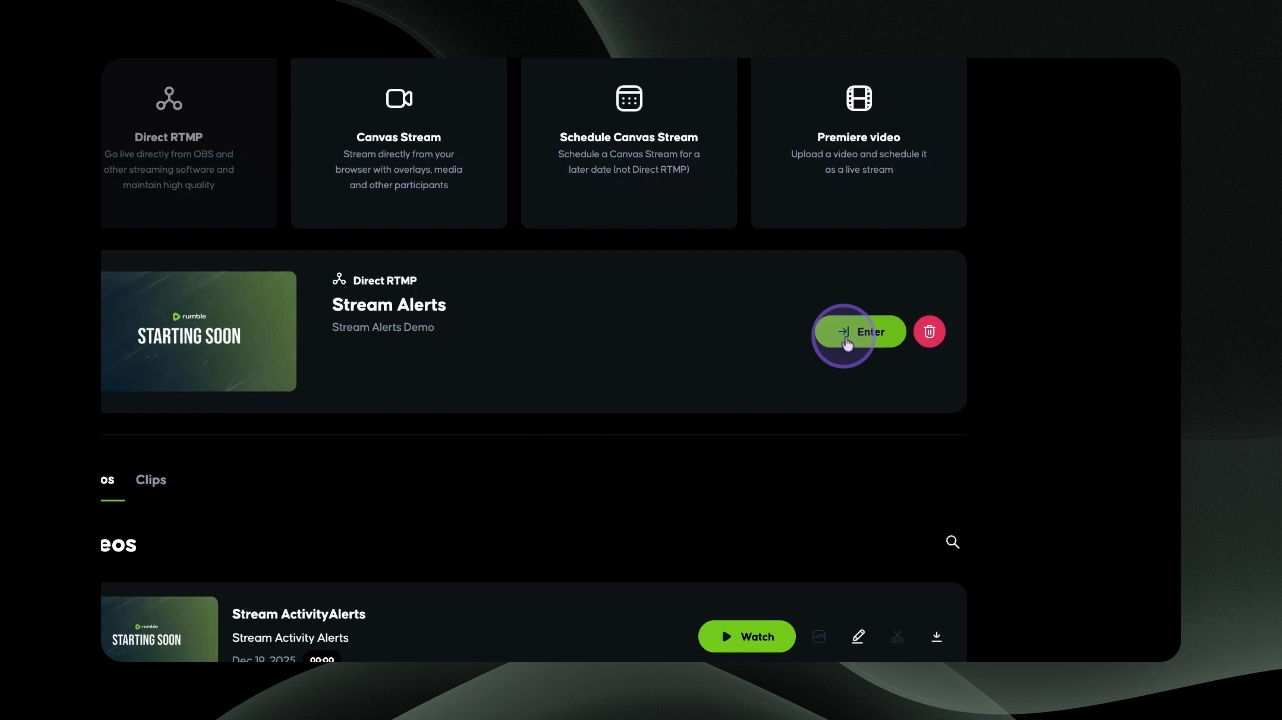
Step 2: Enter Direct RTMP Room
Enter your Direct RTMP room.
Step 3: Open Chat Panel
Open your chat panel in the studio.
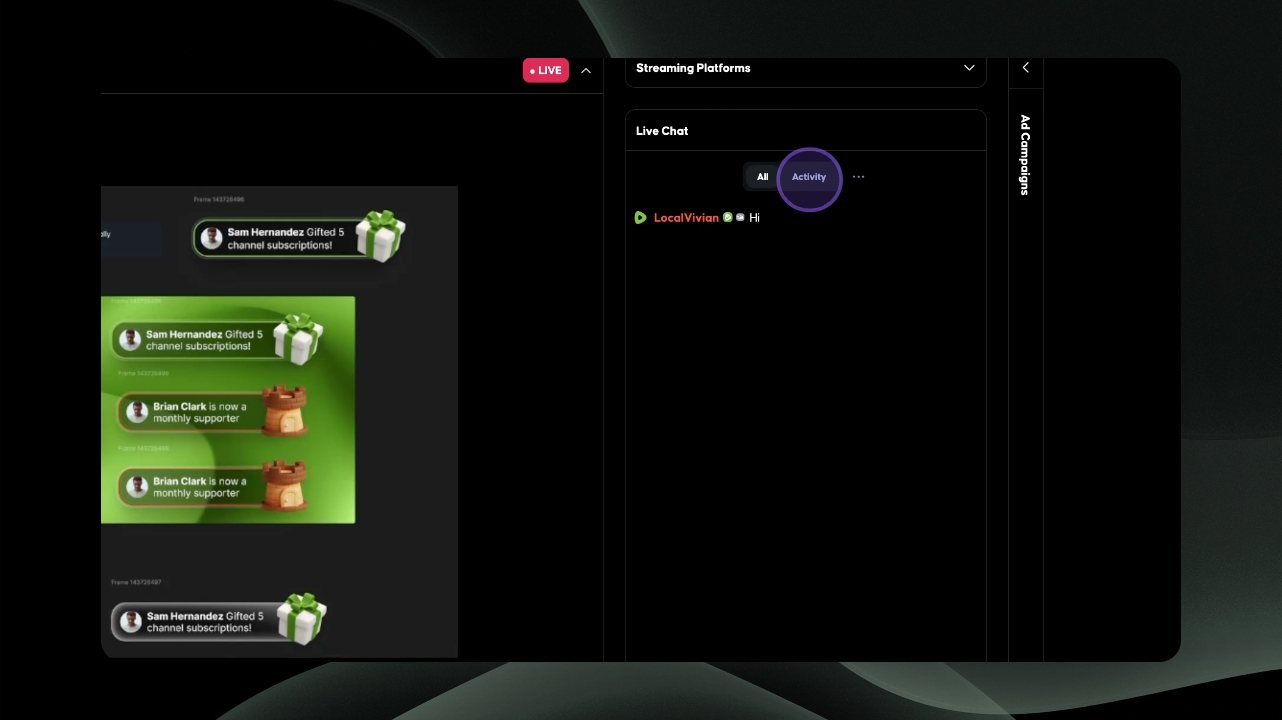
Step 4: Click Activity Tab
Click the Activity tab.
Step 5: Copy Live Chat and Pinned Messages URL
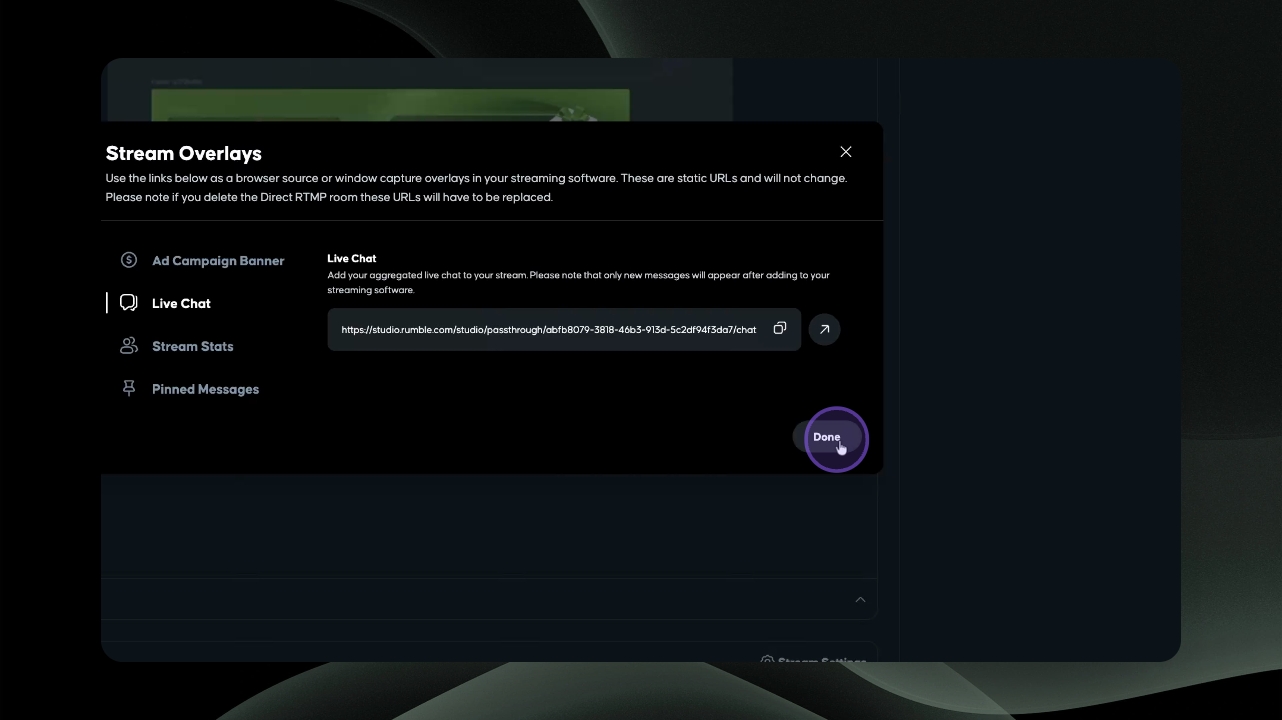
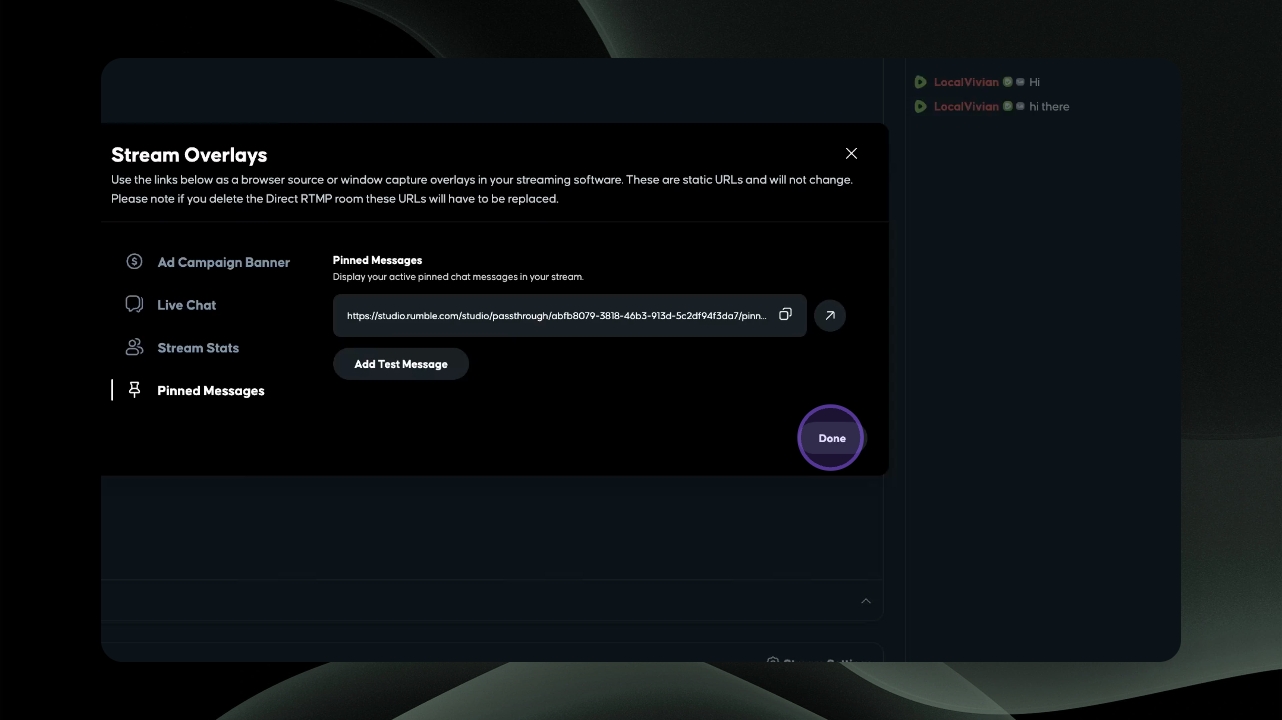
Make sure to copy the stream overlay URLs.
Step 6: Add as an overlay
In the streaming software of your choice, such as OBS, add each URL as an overlay browser.
Step 7: Pin Activity to Chat
In Rumble Studio, select an alert to pin to the top of your live stream by simply clicking on the chat message.
The alert message is now pinned at the top of the live chat feed and will display as an overlay on the live stream.
Step 8: Remove Pin from Live Stream
When the pin is removed by clicking on the chat message, it will also be removed from your live stream.
The pinned message is no longer visible on the live stream.
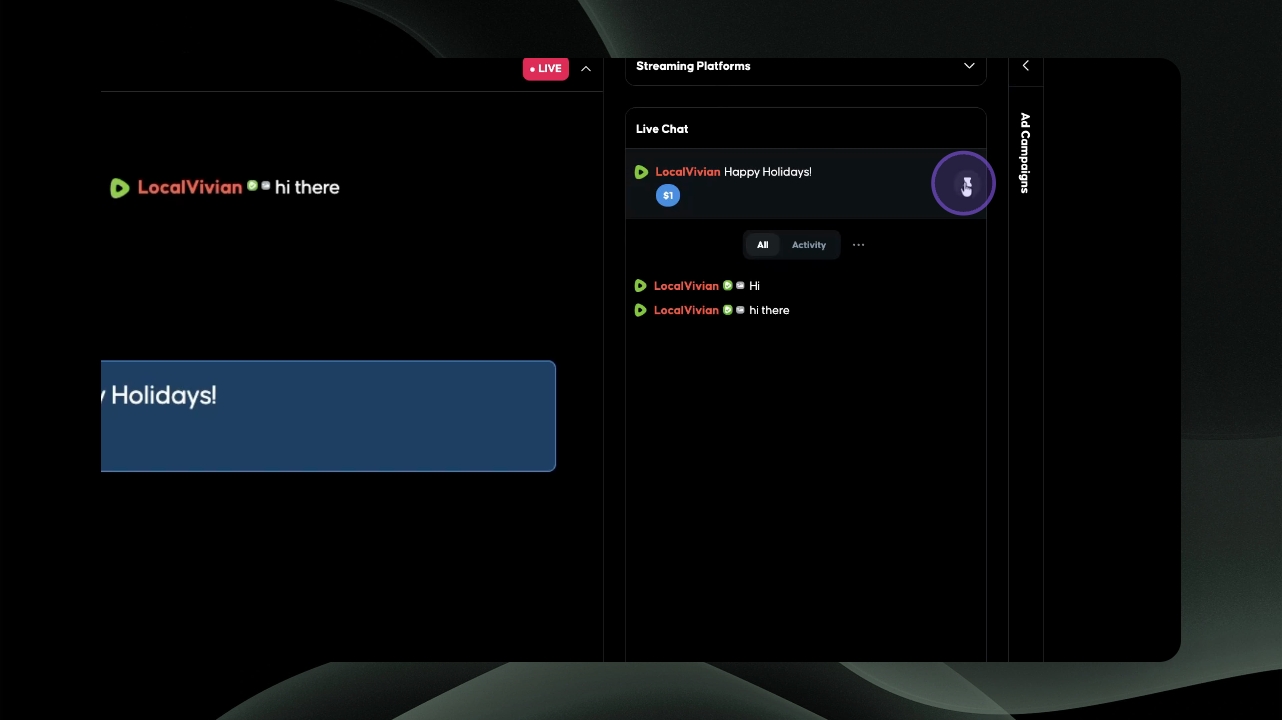
Step 10: Pin Additional Chats
You can pin additional chats as well, not just rants and rates.
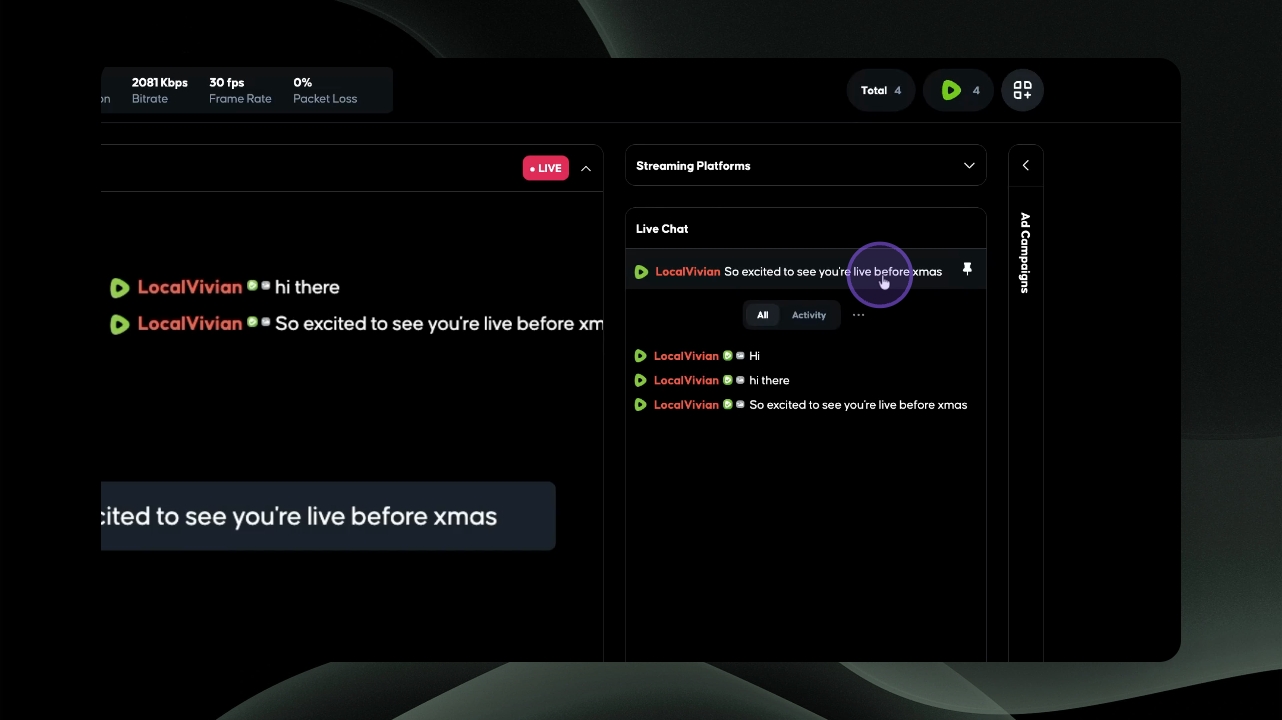
Step 11: Access Activity History
Your activity tab history will stay present within your Direct RTMP canvas as long as the room remains open.