

Getting Started
Monetizing your live stream on Rumble Studio Direct RTMP is easy. Some preparation is needed before the stream. You can check which ad campaigns will be available on the Campaigns page.
Adding an Ad Banner Widget to Streaming Software
To have your host read the ad campaign approved, you must add a widget for the banner (QR code and advertiser info) to your stream as a browser overlay in your streaming software. The following steps will use OBS as an example.
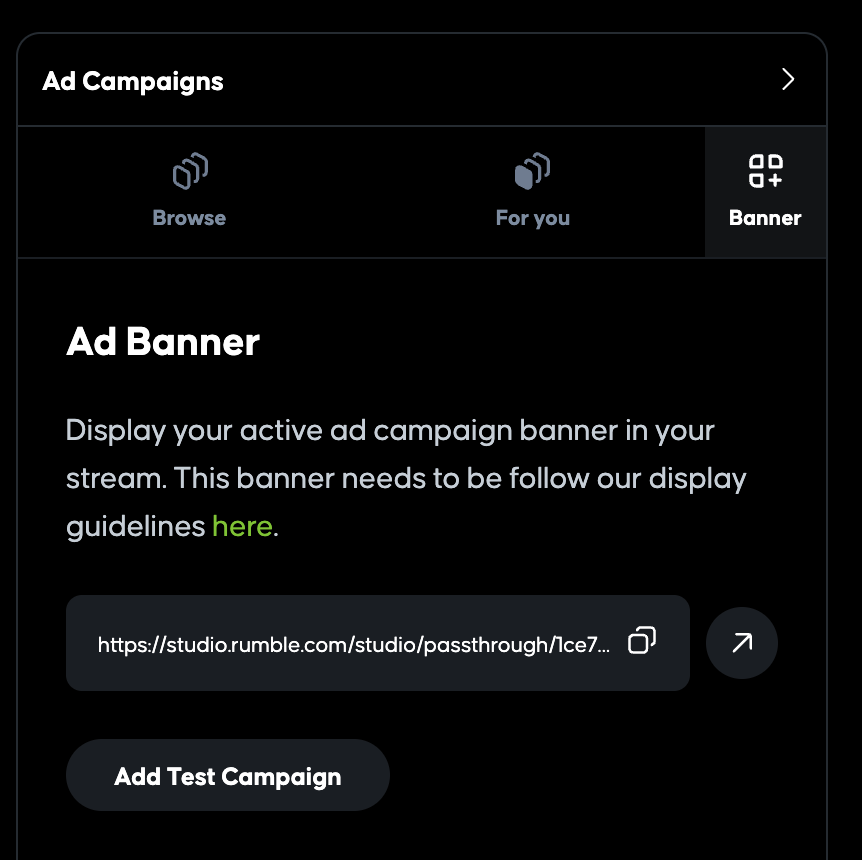
Step 1: Click the "Banner" icon on the right side of the Ad Campaigns module and click the square icon to copy the URL of the widget
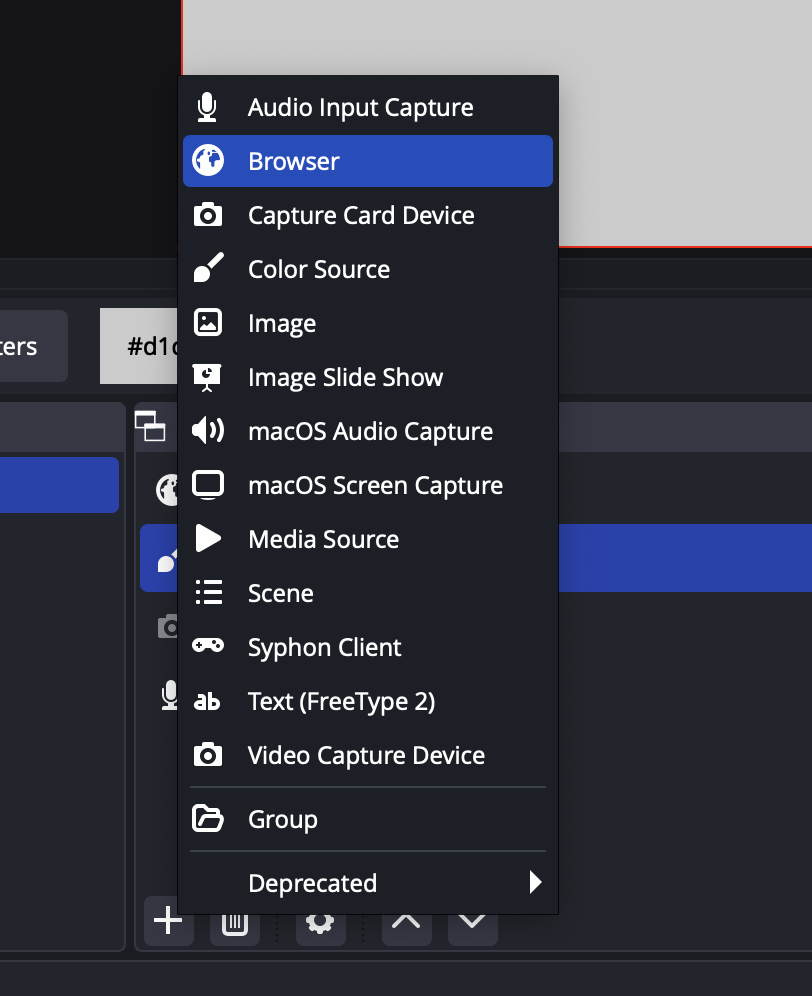
Step 2: Add a "Browser" source to any scene were you will initiate the read (please note: it has to be a browser source, not a screen capture source)
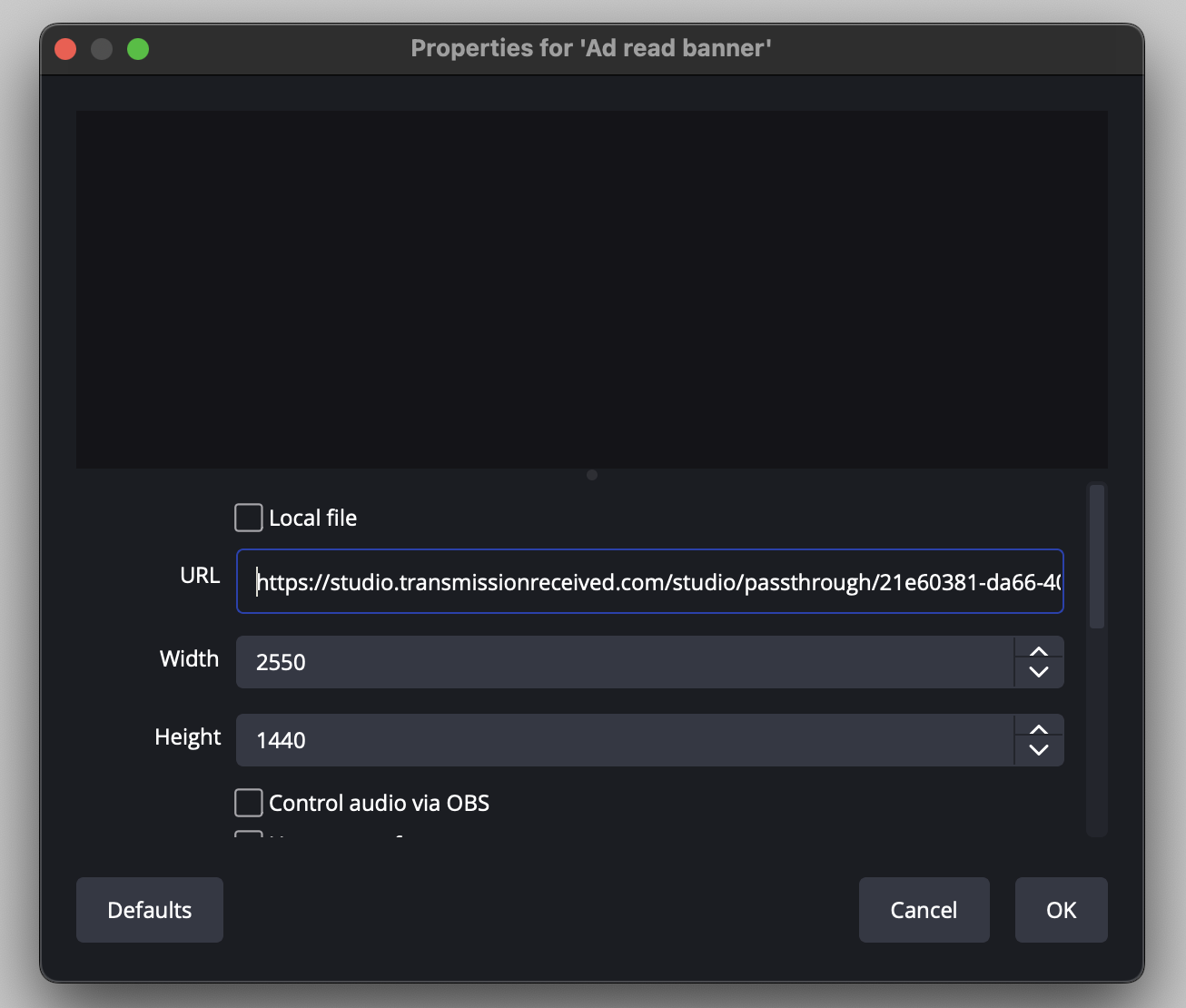
Step 3: Paste the URL you copied for the Ad Banner widget from Studio and make the height and width the exact size of your canvas at 16:9 ratio (typically 1920x1080 or 2560x1440 pixels depending on your canvas size).
Step 4: Go back to the Ad Banner widget in Studio and click "Add Test Campaign" to see an example banner display. Do not forgot to hit "Remove Test Campaign" button before you go live!
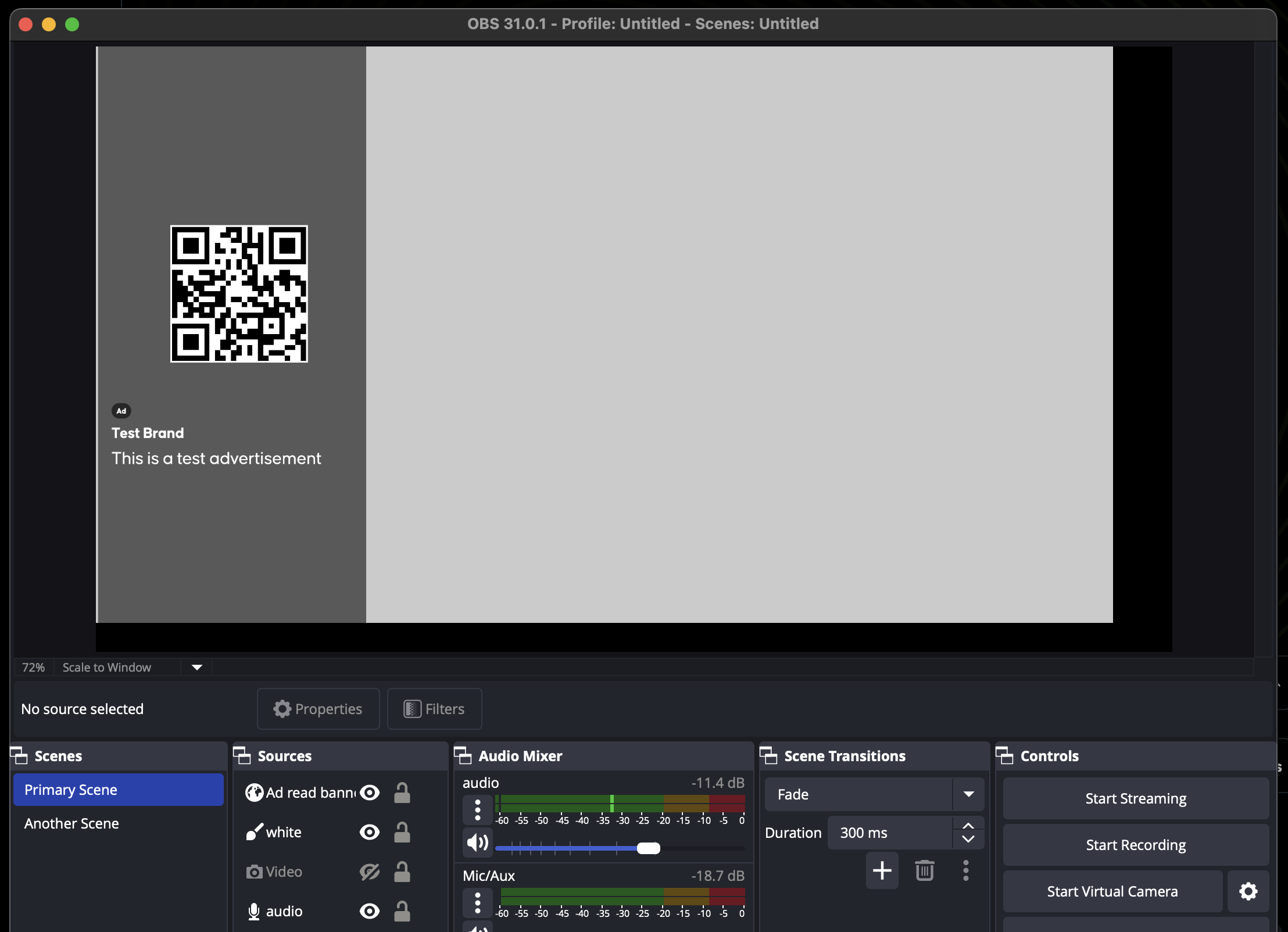
It is no longer required to keep the widget full screen. You can position the widget anywhere on the stream, ensuring the advertiser info and QR code is large, readable, and not "floating" (i.e., securely integrated into the scene).
It is still preferred that the widget be full screen at a 16:9 aspect ratio. To achieve this, ensure the browser source is 1920x1080 (or 2560x1440 depending on your canvas size) before making it full screen (Control + F). (OBS sets the default dimensions at 800x600 and setting the overlay to full screen at that size will create gaps in the placement, bottom left image below)
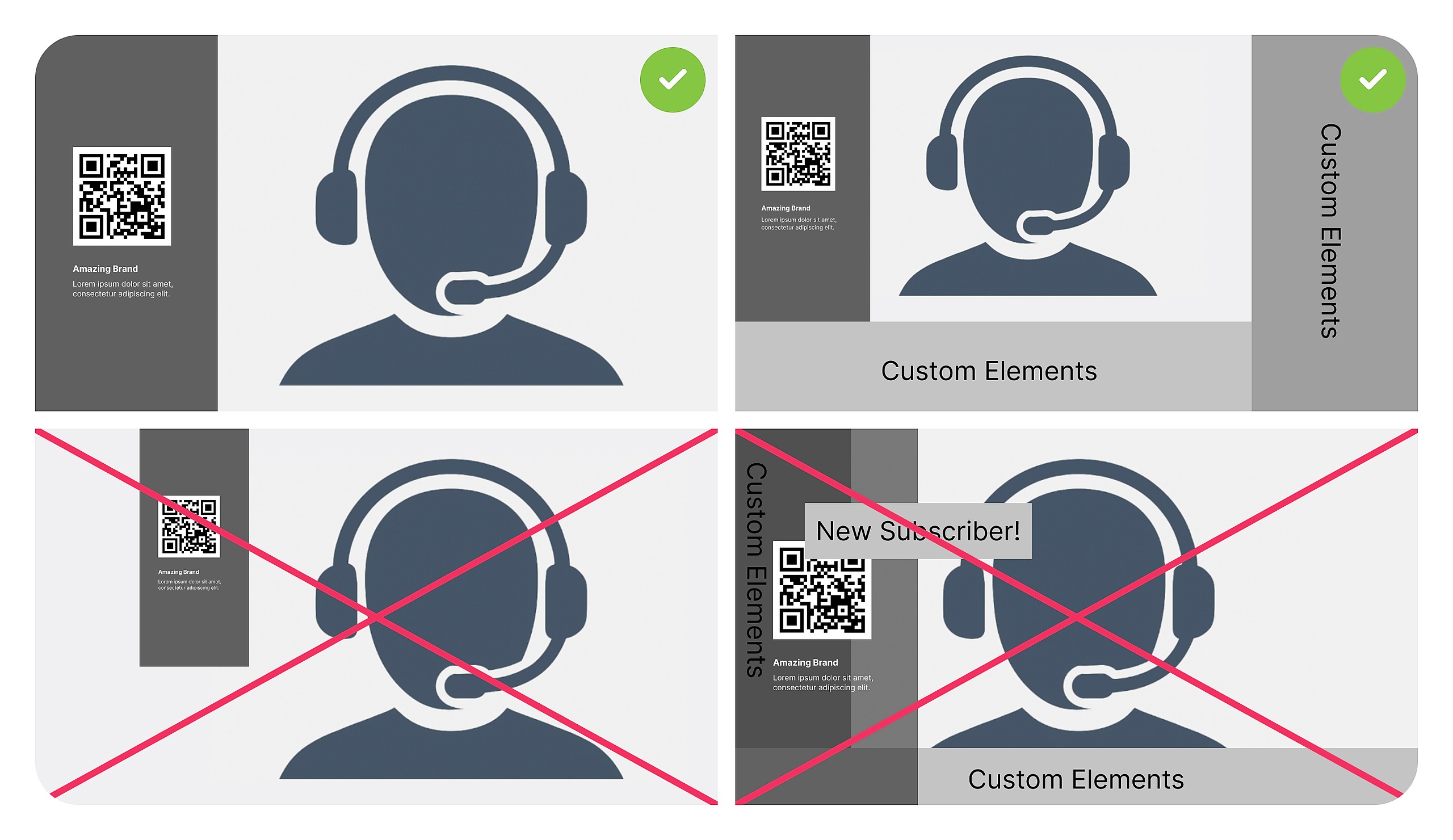
Clean Placement:
Ensure no visual elements (e.g., background images, text, or graphics) appear behind, on or around the QR code banner, creating "noise" or distraction
The banner should stand out clearly with a large, unobstructed view for viewers
Remember, you have the ability to place the banner on the left OR right side when starting a campaign.
Please note: The browser overlay widget has to be added as the source on top of the list of all of your other sources so that it always appears on top. It also has to be on every scene so that if you are doing a read and using multiple scenes that it will always appear on stream. Your read will be rejected if the QR code and advertiser information is not displayed on screen during the read.
See Live Read Campaign Guidelines and Instructions for more information about how to successfully execute an approved read.