

Getting Started
Direct RTMP room is a new room type. The Direct room passes through the highest quality stream without any additional processing. Select “Direct RTMP” here to create a direct room:
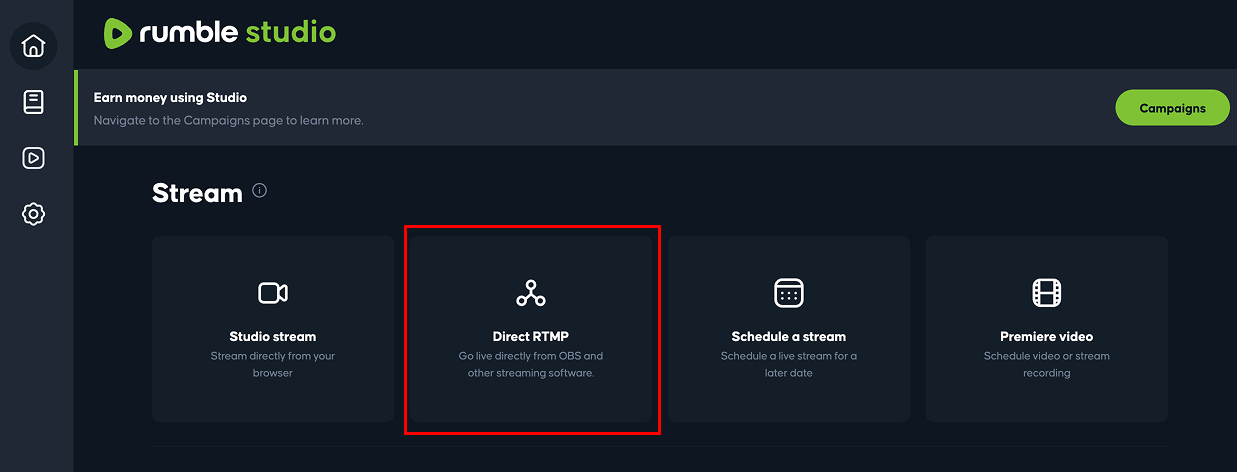
Please note that you can currently only have one room open at a time. If you have a classic Studio room open, you will need to close the room to create a Direct one and vice versa. You can leave the Direct room open indefinitely to create multiple streams in the future.
Once you create a Direct RTMP room, you can pre-populate the stream from a template or start from scratch.
Setting Up A Stream
Fill out the fields on the right side, including stream name, description, image, categories, etc., and note which ones are required. Specify what destinations you want to stream to, then click the save button.
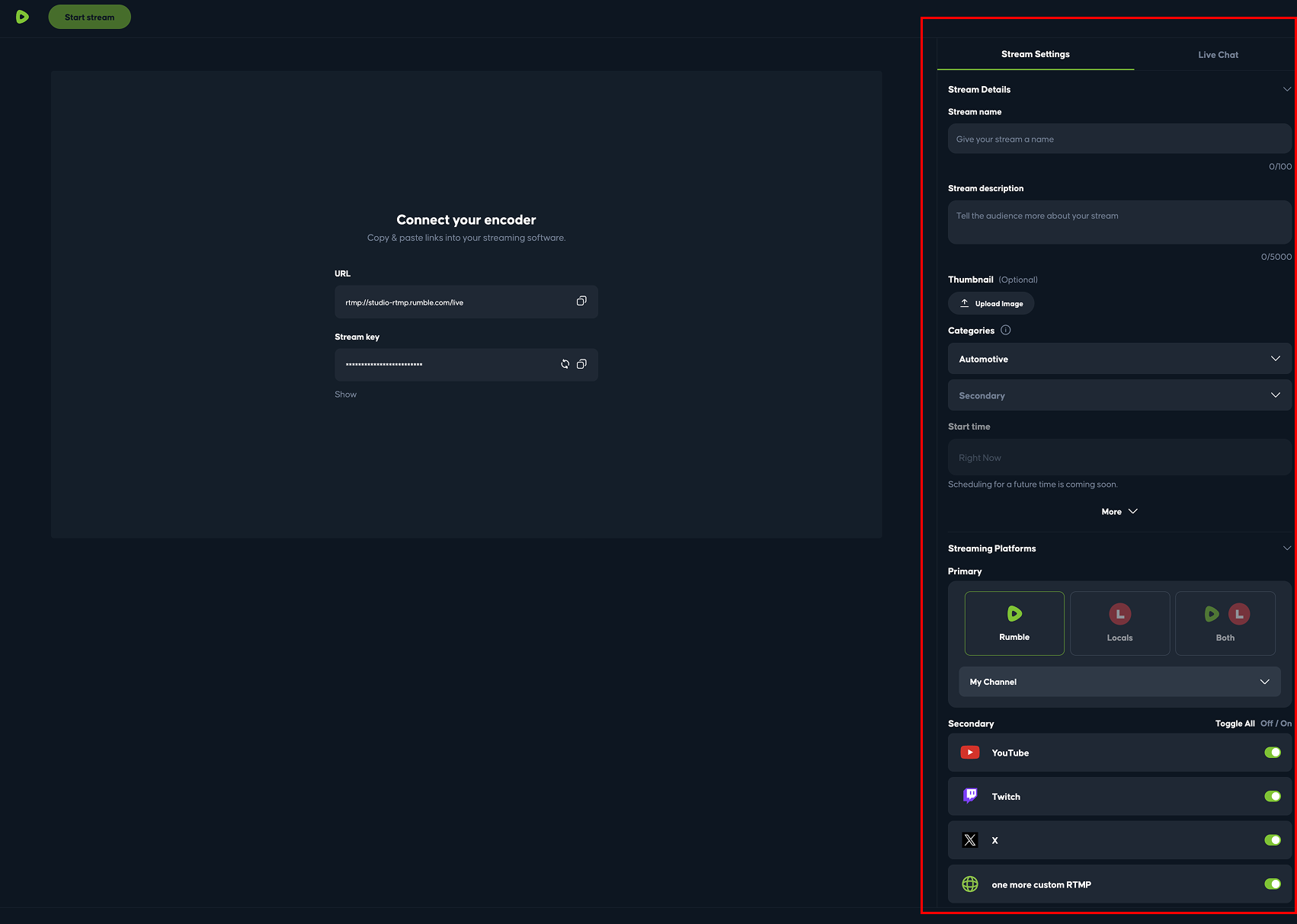
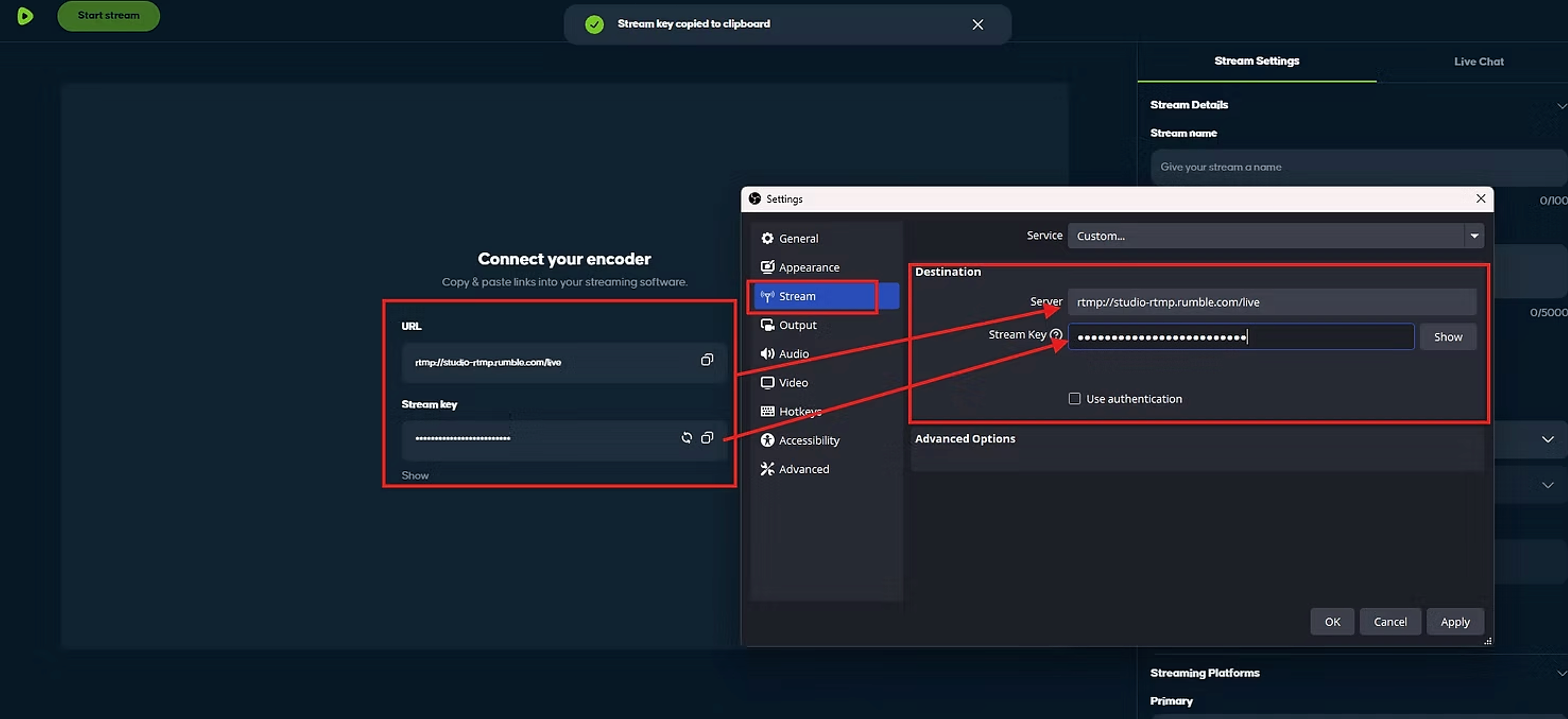
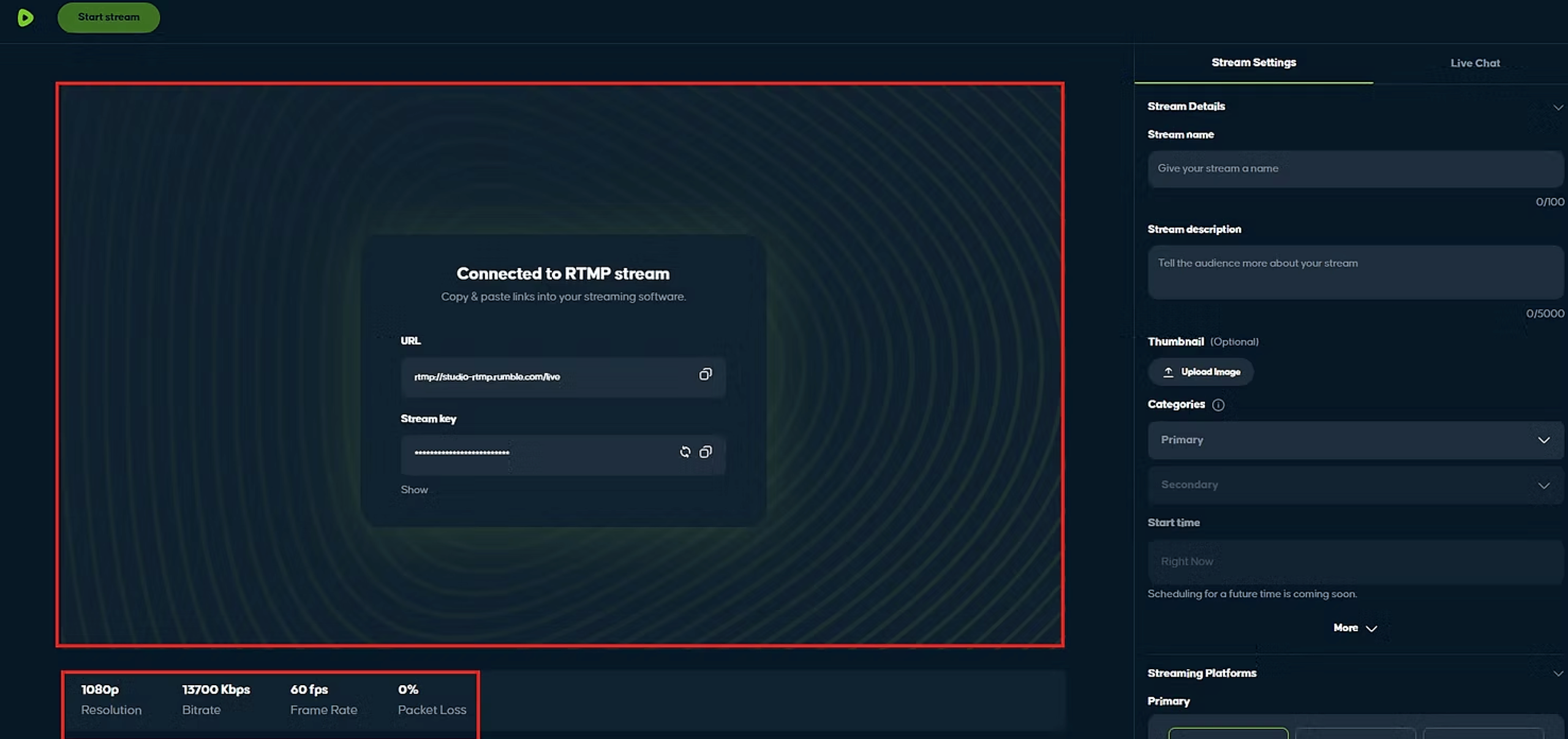
Copy and paste the stream URL and stream key from here and paste into OBS or your streaming platform of choice:
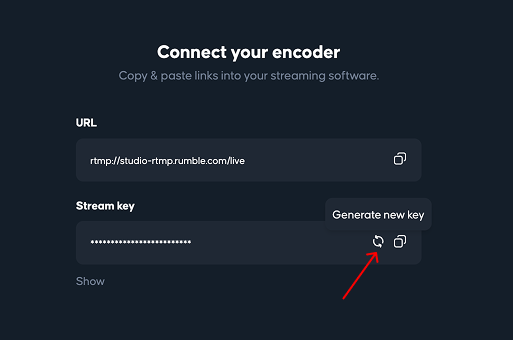
Rumble Studio Direct RTMP uses a static key that you can set and forget. Be sure to never expose or share your key and know you can reset the key at any time:
Recommended Stream Settings
The following are recommended settings to stream from Rumble Studio Direct RTMP to Rumble:
Resolution & Framerate | Bitrate setting (Mbps) |
|---|---|
4K / 2160p @60fps | 30 Mbps |
4K / 2160p @30fps | 24 Mbps |
1440p @60fps | 20 Mbps |
1440p @30fps | 12 Mbps |
1080p @60fps | 10 Mbps |
1080p @30fps | 8 Mbps |
240p-720p @60fps | 6 Mbps |
240p-720p @30fps | 4 Mbps |
Please note that other platforms have their own recommended settings and limitations. See below for more info:
Twitch: https://help.twitch.tv/s/article/broadcasting-guidelines?language=en_US
YouTube: https://support.google.com/youtube/answer/2853702?hl=en
X: https://help.x.com/en/using-x/x-live
Facebook: https://www.facebook.com/help/1534561009906955?helpref=faq_content
Kick: https://help.kick.com/en/articles/7066931-how-to-stream-on-kick-com
Starting A Stream
The Direct RTMP room will only allow you to go live once a RTMP connection is made. Once connected, it will say "Connected to RTMP stream." There will also be a green highlight and a widget with stream health metrics will appear.
After you add or edit fields, be sure to remember to click the "Save Changes" button at the bottom of the fields.

Once all of the required fields are filled out AND there is an active RTMP connection, the start stream button at the top left of the page will be enabled:
Once you click start stream, the stream will be created across all destinations you set and will be live
Managing a Live Stream
While live, you are able to edit attributes of the video, such as title, description and thumbnail and it will update on Rumble and the other platforms that support those updates.
You can also toggle on and off other destinations while live, or all of them at once.
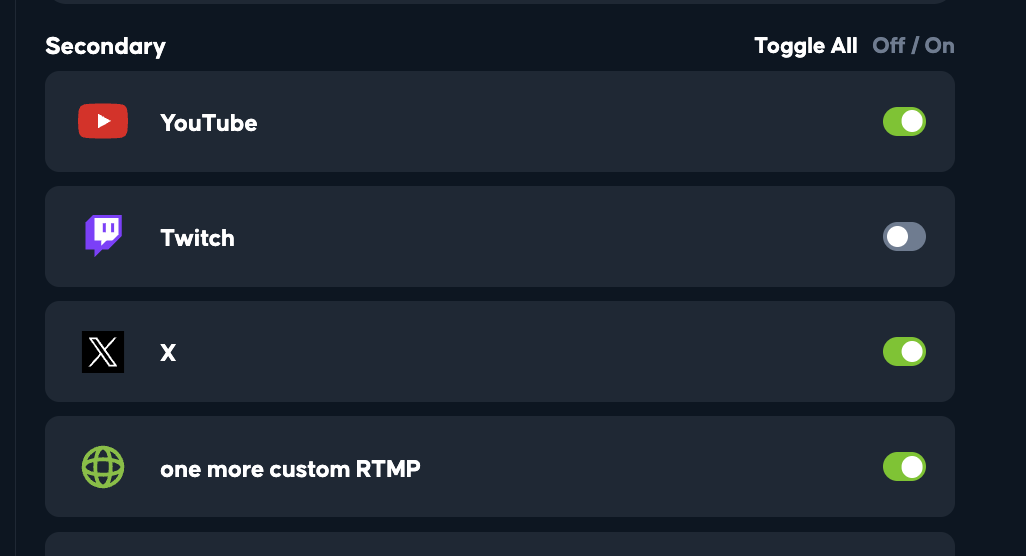
While live you can see stream health metrics, aggregated live chat and viewer count.
For creators active in the Rumble creator program, you can live gate your stream to be exclusive to Rumble Premium the same way as the classic Studio room
To stop a stream, simply hit the red "End Stream" button.
Starting a New Stream
Remember, your Direct RTMP room can exist indefinitely. You can delete it and reset the static key. But if you want to reuse the same room over and over for multiple streams, you can. Simply change the required fields and connect via RTMP and go live and a new stream will be created
Please email support@rumble.com for any questions or issues
Please note that scheduling of live streams will be coming soon.