

For iOS
Open the link that was provided to you, it will normally look something like this with the [CODE] part replaced with an actual promo code: https://apps.apple.com/redeem/?ctx=offercodes&id=1518427877&code=[CODE]
You will see the promo displayed. Make sure you double-check that it is the correct offering
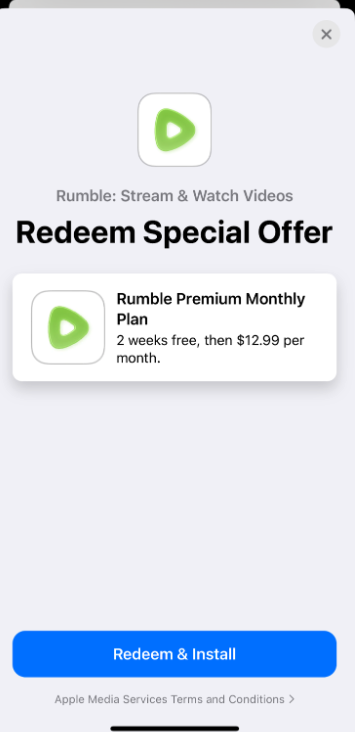
Click the Redeem button (or Redeem & Install if you don’t have the Rumble app installed yet)
You will be asked to submit your payment (payment is required even if the promo is a free trial because after the promotion ends, you will automatically be charged on renewal) - Confirm you payment
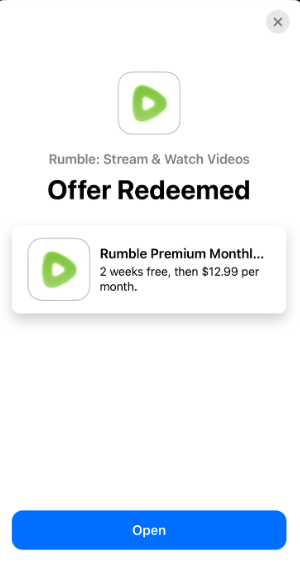
Once Redeemed (and the app is installed), you will receive confirmation that the offer has been redeemed.
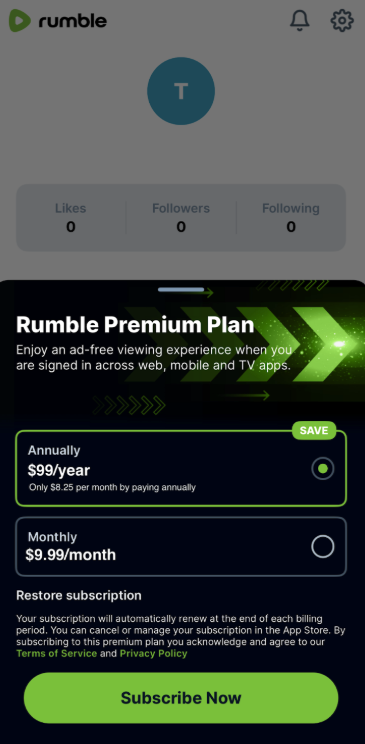
In order to activate your Premium promo in the app, log in to the app and go to Settings > Get Rumble Premium Plan
On the pop-up to Get Rumble Premium, click on the “Restore subscription” text underneath the plans
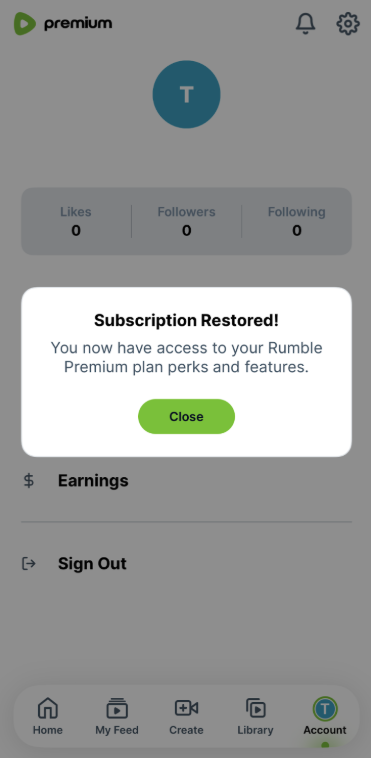
You will receive confirmation that the “Subscription” has been restored, meaning the promo has been applied to your Rumble account, and you should have Premium access.
For Android
Make sure you have the Rumble app installed and log in.
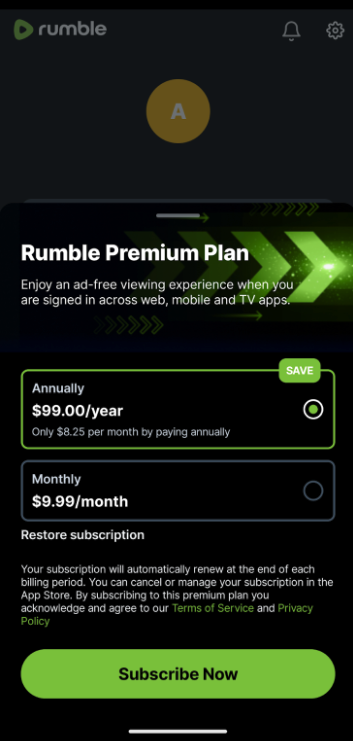
Go to Settings > Get Rumble Premium Plan
Select the plan that the promo is for and click Subscribe Now
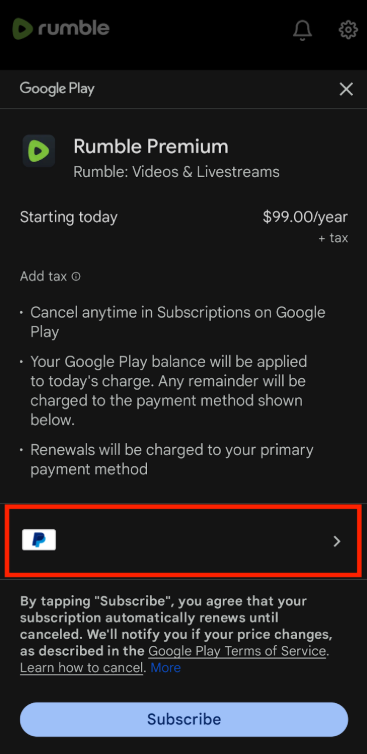
On the payment page, click on the Payment section (it will display your default payment method that is saved in the Google Play Store)
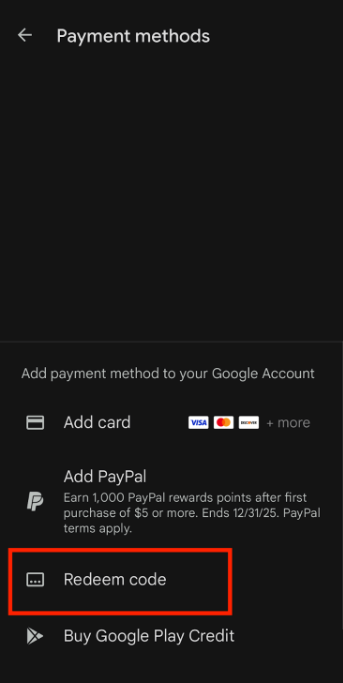
You will see your list of Payment methods and some other options. Click the Redeem Code option near the bottom of the page.
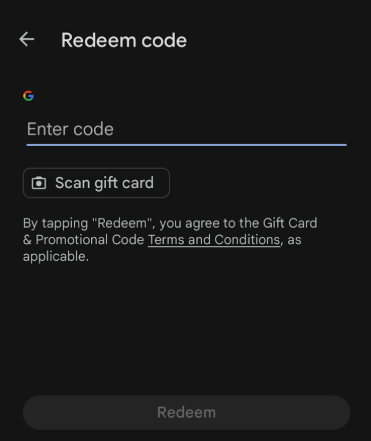
Enter the promo code that was provided to you and click Redeem
You will get a confirmation of the promo, and click Continue.
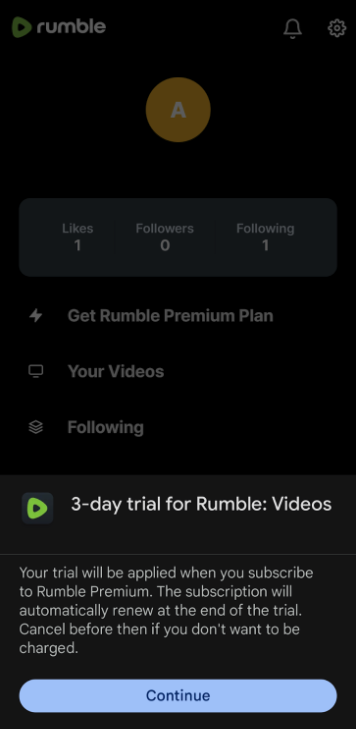
You will see the Payment screen again. Submit your payment this time
Once payment goes through, you will see confirmation that your purchase was successful and you should have Premium access.