

Admin vs. Moderator in Rumble Studio
Admins have broader production controls in Rumble Studio, including stream management tools and overlays.
Moderators have chat-focused permissions for that specific livestream room, including deleting messages, muting users, and pinning comments.
Follow the steps below to add a participant in Rumble Studio and assign them as an Admin or Moderator for your livestream.
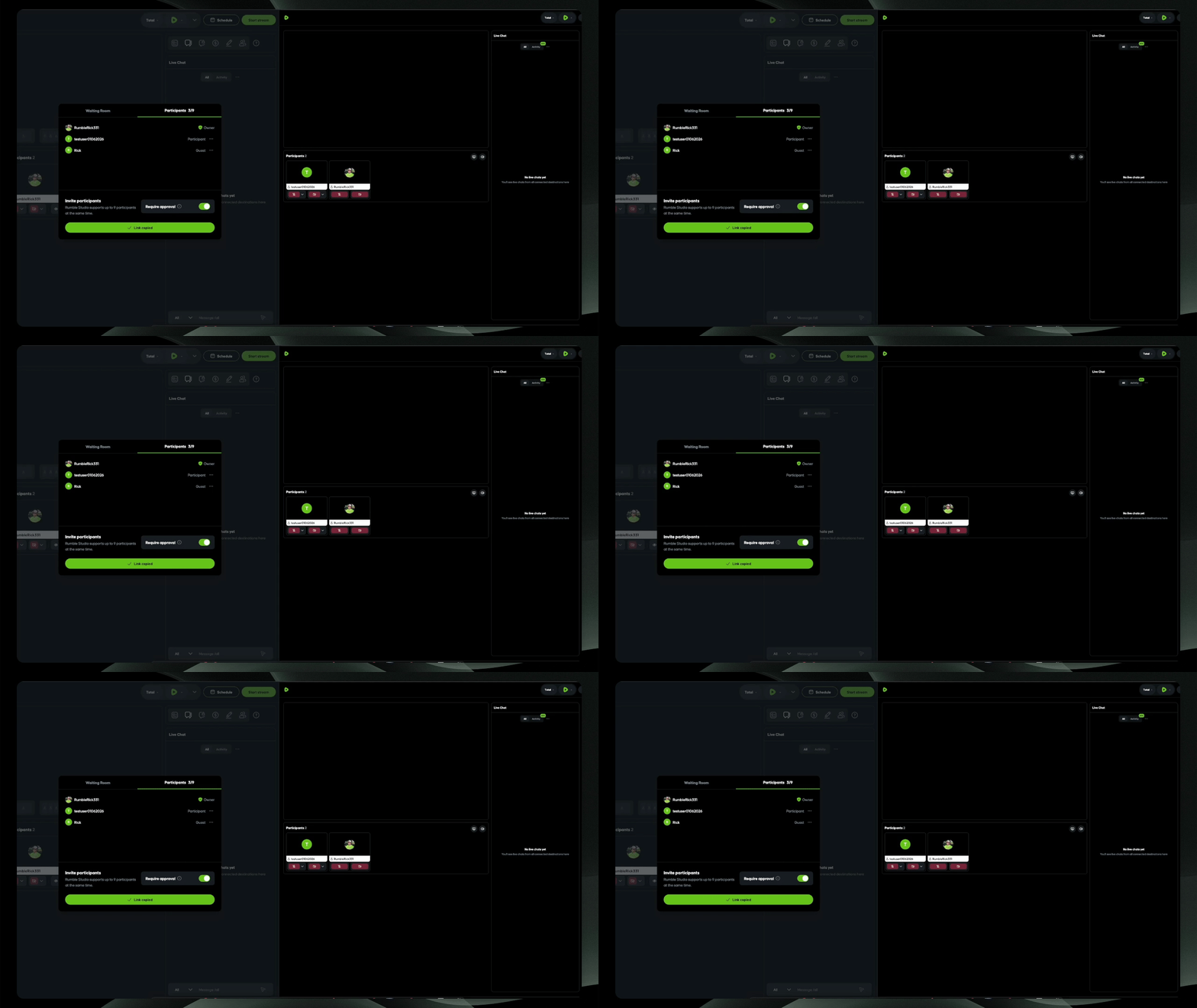
Step 1: Open participant role options
In the Participants panel, find the participant you want to update. Select the three dots next to their name to view role options.
Step 2: Assign a role
From the menu, choose Add Admin or Add Moderator, depending on the level of access you want to give that participant.
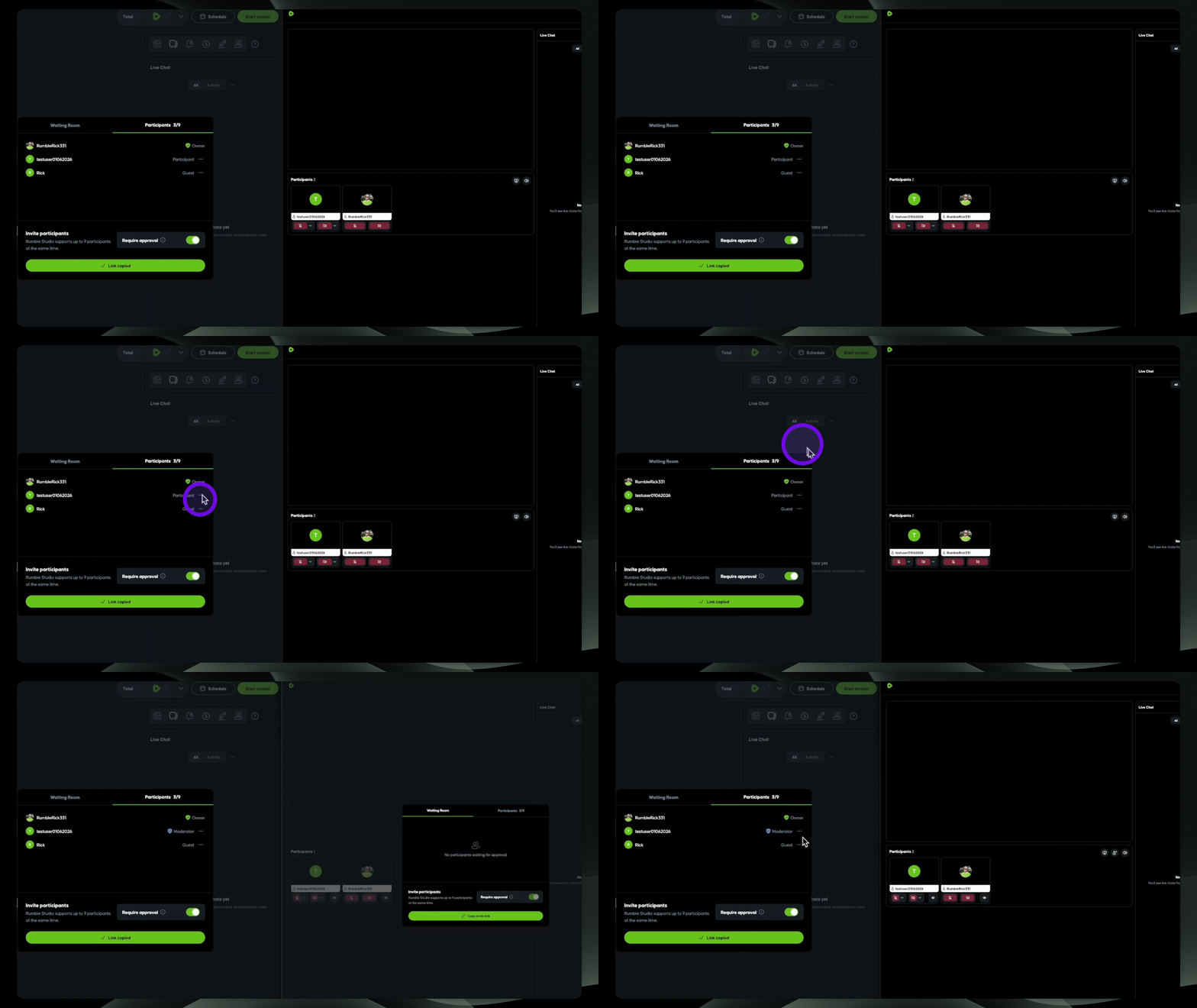
Once assigned, the participant’s role will be updated in Rumble Studio. Their available controls will reflect the permissions associated with that role.
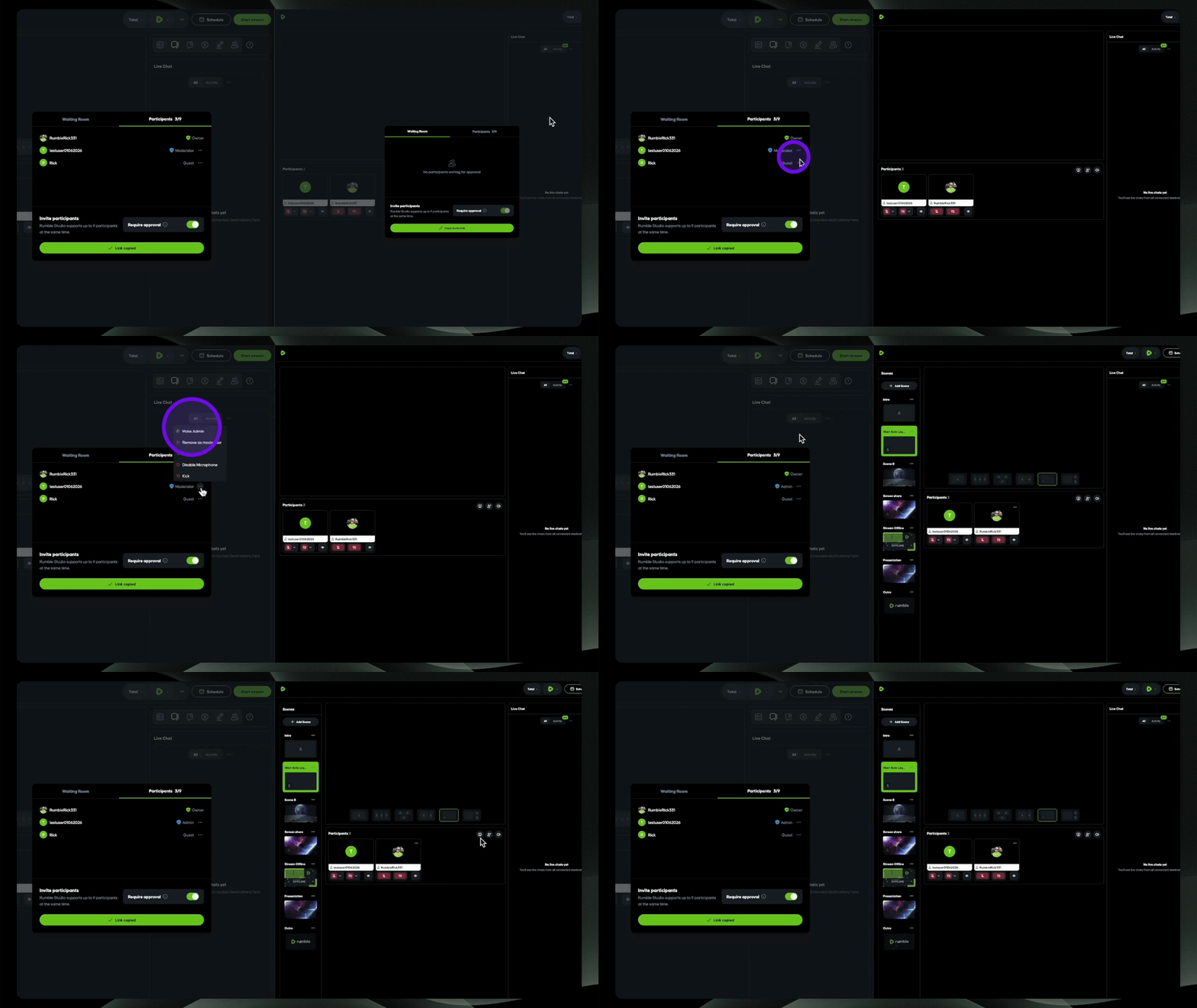
Your assigned Admin or Moderator can now help support your livestream while you stay focused on hosting and creating content.