

Moderators help you stay in control of chat.
A moderator is a trusted person who can help manage conversations during your livestream by removing disruptive messages, muting users, and helping keep chat on track.
You can easily add moderators to your live stream through Rumble.com.
Moderation tools apply to both comments and live chat messages, helping channel owners and moderators manage conversations across their channel.
How to add moderators
First, navigate to your account settings > moderation, select Moderators, then type the moderator's username you would like to add. Once selected, that user will be added as a channel moderator.
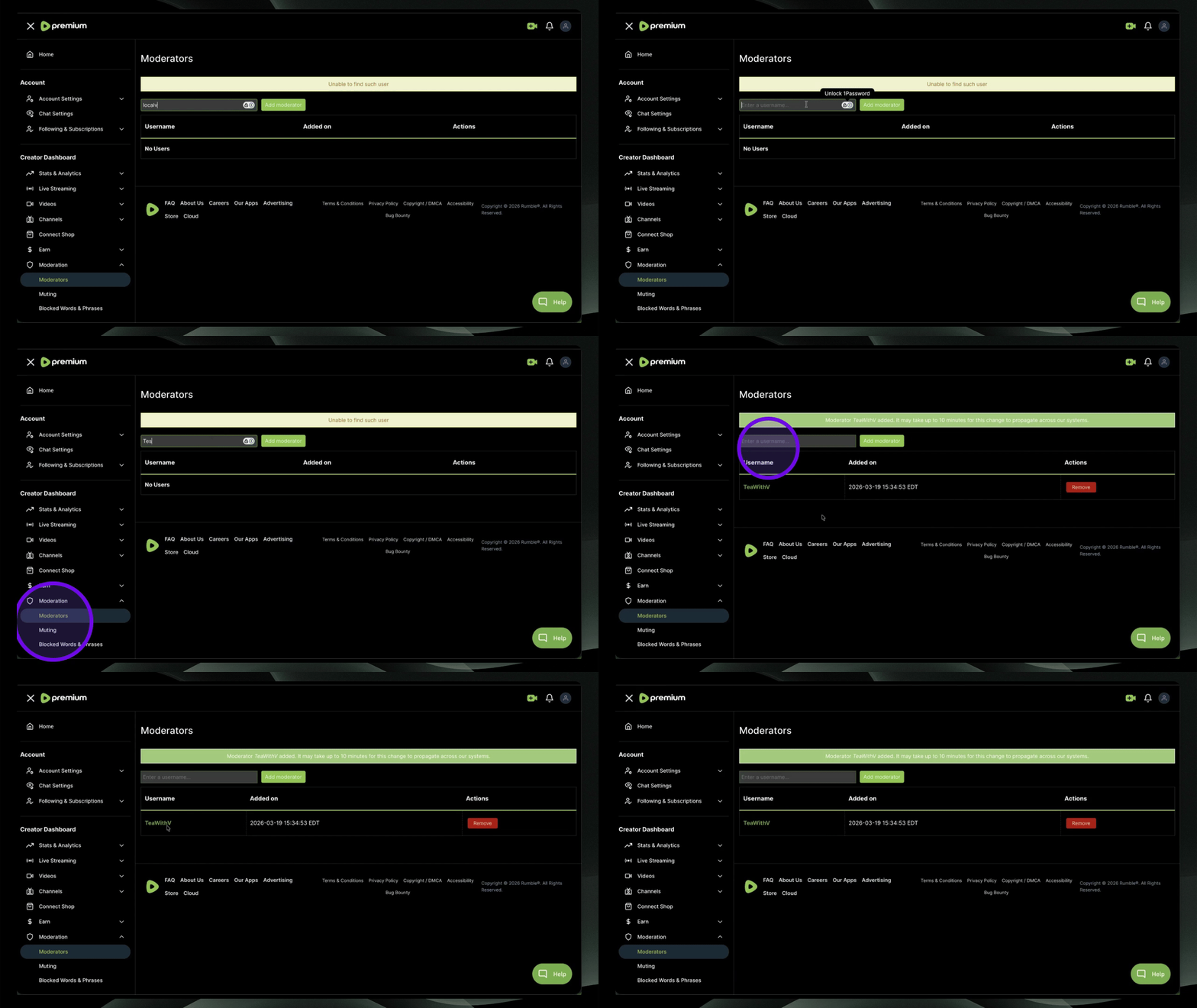
How to Moderate Chat and Comments
Channel owners and moderators can manage both comments and live chat messages on the web, iOS, and Android.
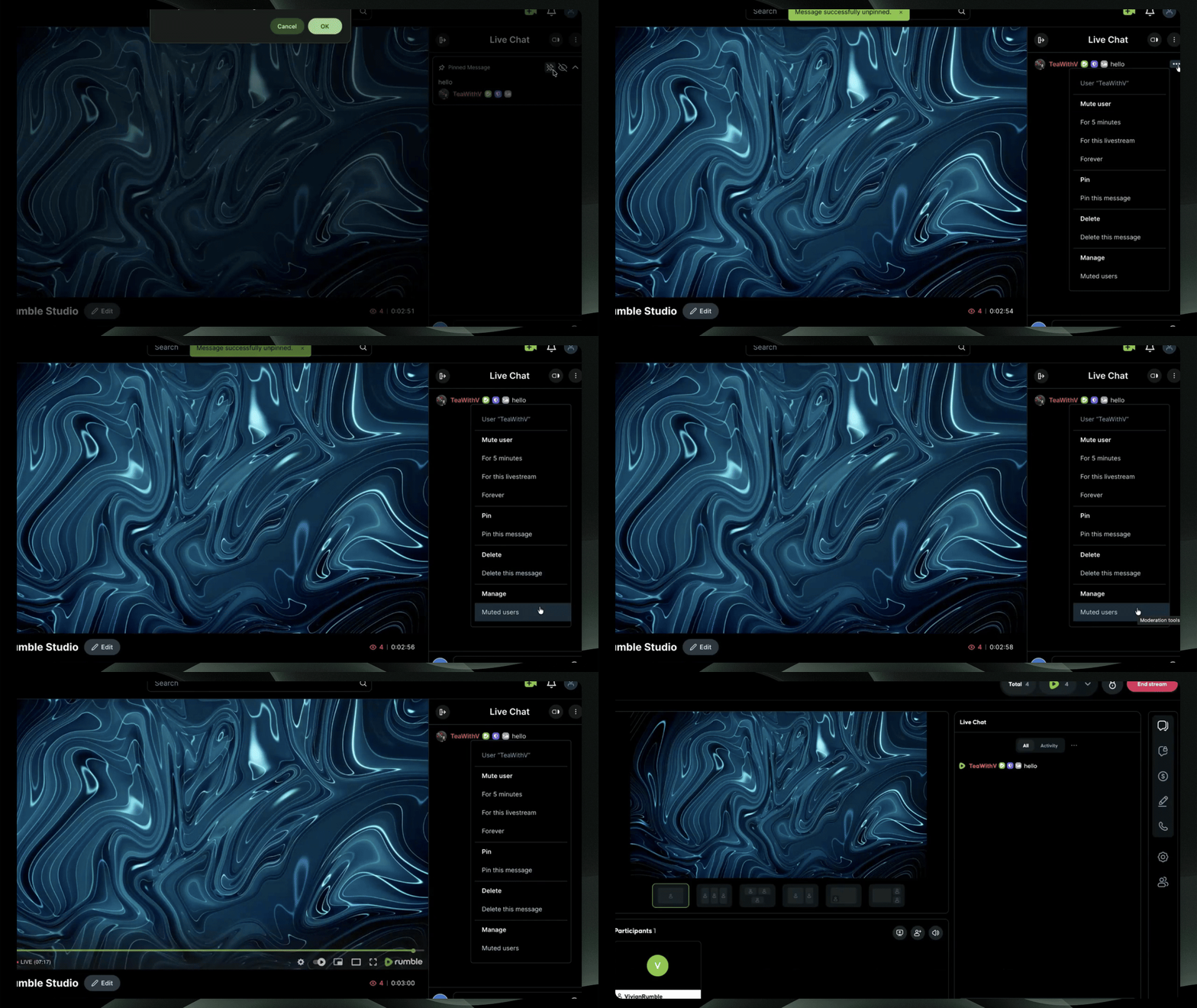
Select the three dots next to a message in live chat or under the video's comments to open moderation options. On mobile apps, press and hold the message instead. From there, you can:
Delete live chat messages and video comments
Mute users for 5 minutes, for the duration of the stream, or permanently
Pin live chat messages
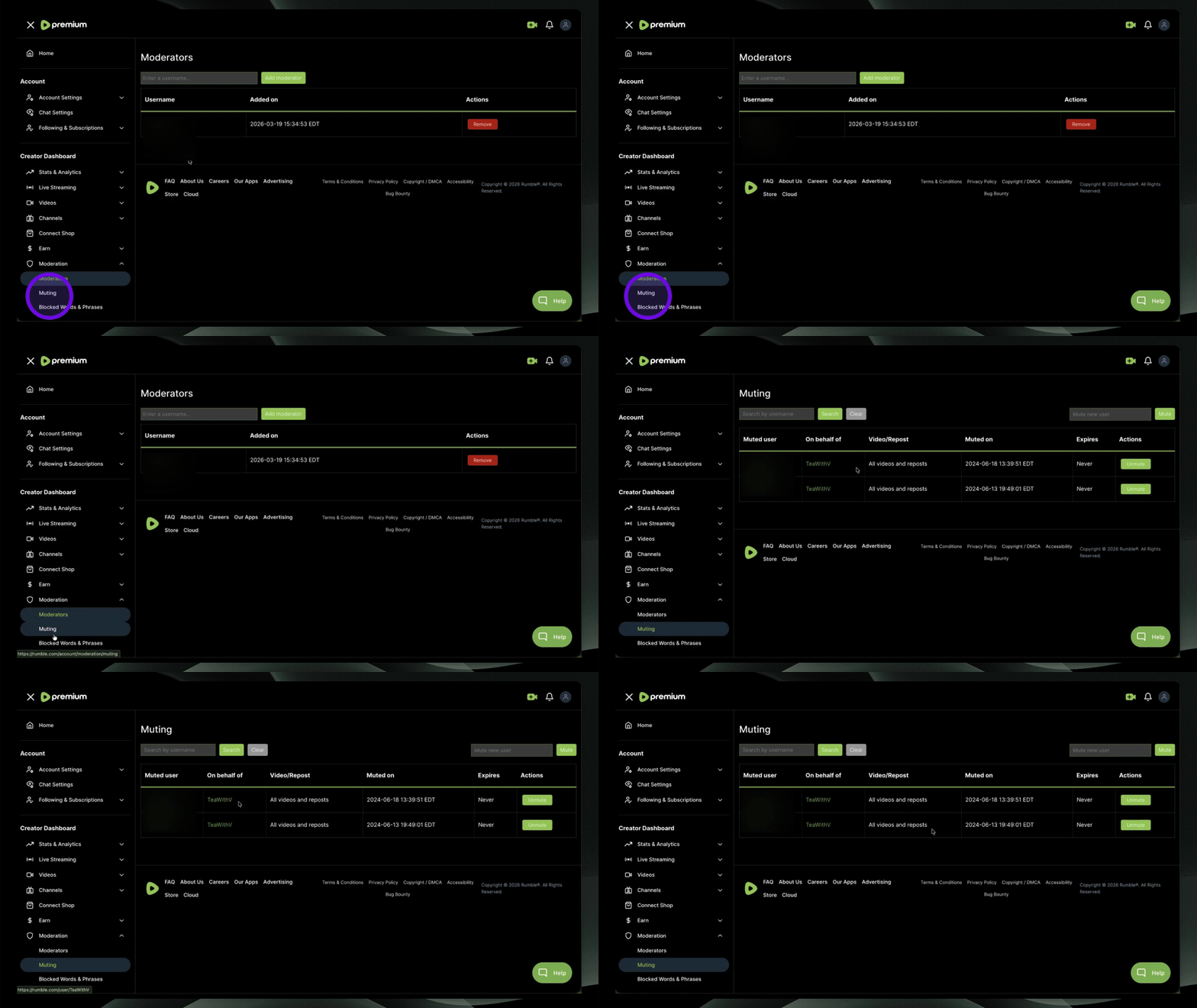
Muted Users
You can mute users directly from live chat or video comments by selecting the three dots next to a message and choosing your preferred mute option: 5 minutes, for this livestream, or permanently.
To manage muted users afterward, go to Account Settings and select Moderation, then Muting. From there, you can view and manage muted users.
Blocked Words, Phrases, and Links
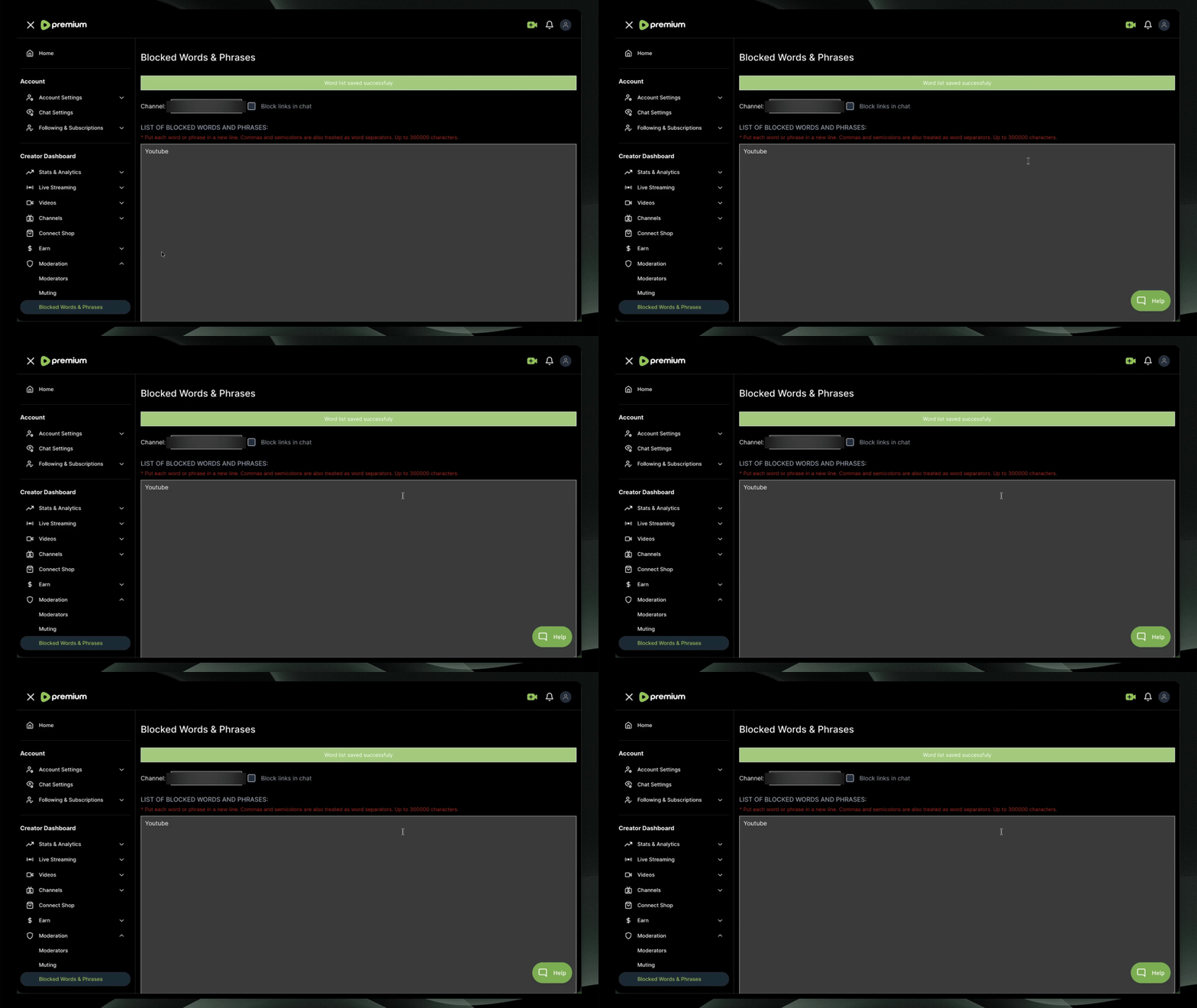
To manage blocked words, phrases, and links, go to Account Settings and select Moderation, then Blocked Words and Phrases.
These settings apply at the channel level and are automatically enforced across your channel, including in live chat and comments. Be sure to select the correct channel before making changes.
Select the channel you want these settings to apply to. To block links in live chat, select the checkbox next to Block Links in Chat. Once enabled, links will automatically be blocked in chat for that channel.
Under List of Blocked Words and Phrases, enter any words or phrases you want to block. These settings apply at the channel level and are automatically enforced during your livestreams.
Blocked words, phrases, and link settings help moderate both live chat and comments at the channel level.
Rumble Studio Moderation
Adding a moderator through your account settings on Rumble.com does not automatically give that person moderation permissions in Rumble Studio. These permissions are managed separately. For help adding moderators in Rumble Studio, refer to: