

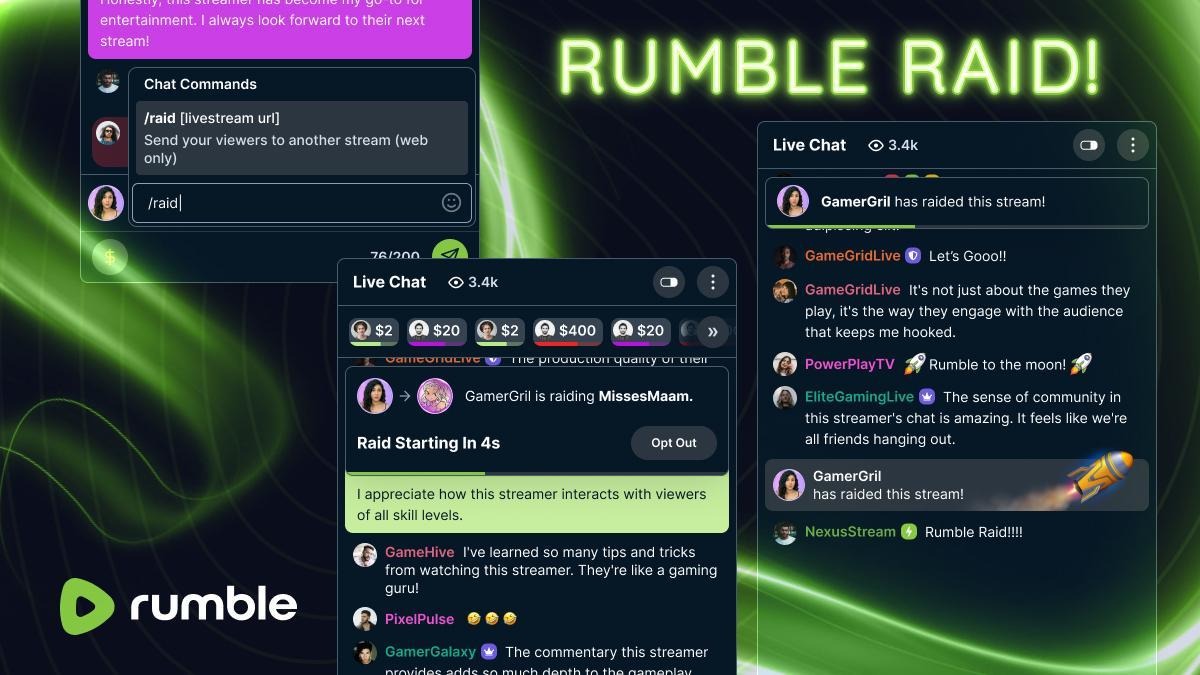
Designed with creators in mind, this exciting addition empowers users to seamlessly transfer viewers from one livestream to another with just a few clicks.
Similar in functionality to other platforms, Rumble's Raid feature amplifies community engagement and collaboration, enabling creators to share the spotlight and foster connections across the platform.
Explore this guide to discover how to harness the full potential of this dynamic tool and elevate your live streaming experience like never before.
Quick Notes:
Currently, you can only raid once every 10 minutes.
Only URLs of LIVE streams on Rumble.com can be raided.
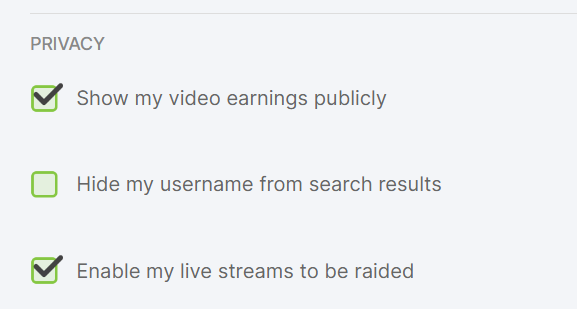
All users can optionally disable their channel from being raided in account settings
Raid functionality works with pop-out chat
You can now use the raid feature with Direct RTMP in Rumble Studio
How To Initiate A Raid
To start a raid, copy the URL of the live stream you want to send your viewers to.
As the channel owner or a moderator, enter the chat command /raid into the chat box:
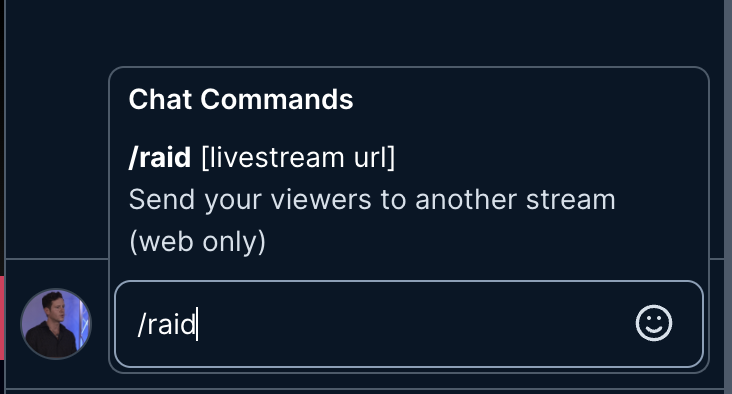
....and paste the URL into the chat and hit enter. That's it!
Please note that URLs of Rumble live streams will be accepted and you can currently only do one raid per live stream, and other creators have the option of disabling their channels from being raided. If any of those conditions are not met you will get an error message.
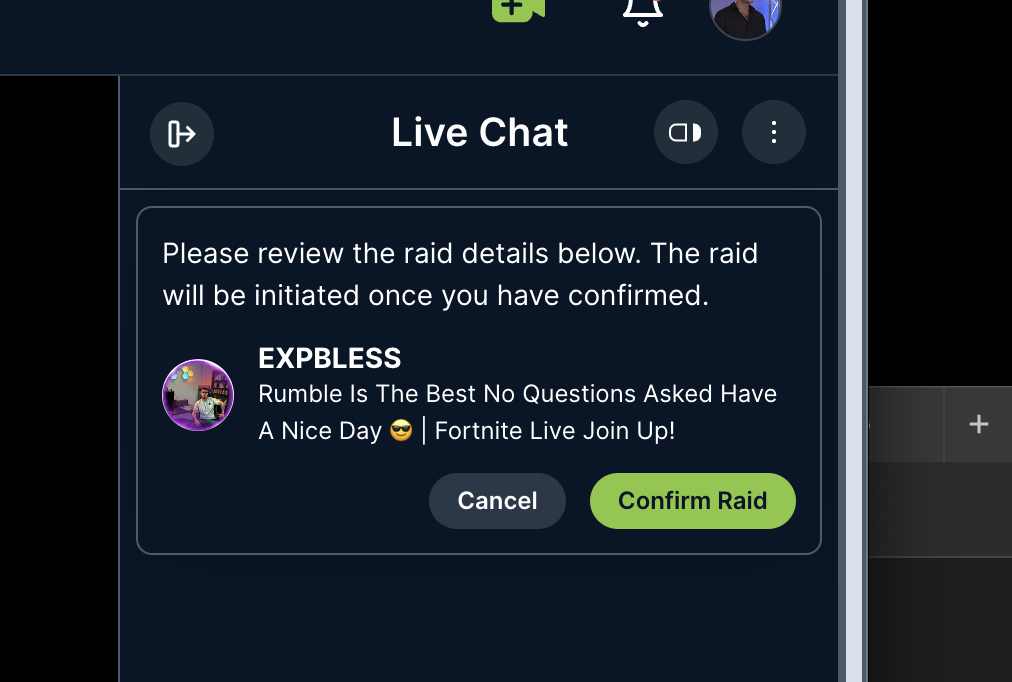
Once you submit the raid you will get a confirmation. Once confirmed, the Raid will be initiated.
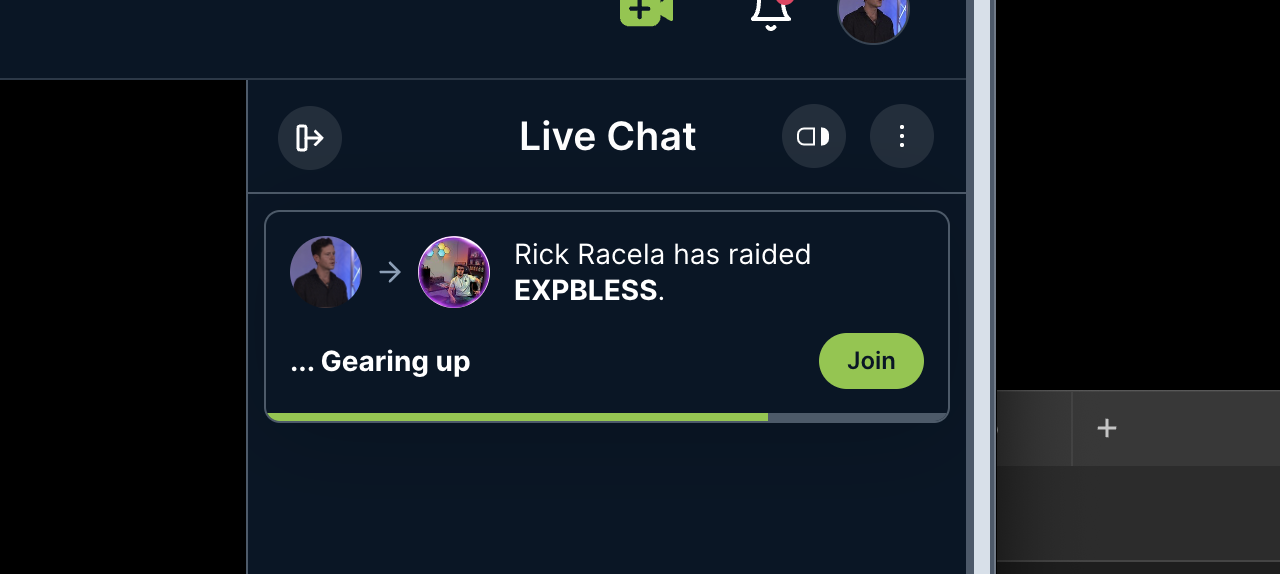
Once the Raid is initiated, all viewers in your live chat will see a prompt alerting them to the raid. Viewers can opt-out to the raid.
While the countdown is happening a viewer can opt-out. Once the countdown is over and if the user opt-ed in, they will automatically be redirected to the raided stream. If they did not opt-in before the countdown, they can still click the join button to move to the new stream.
Being Raided
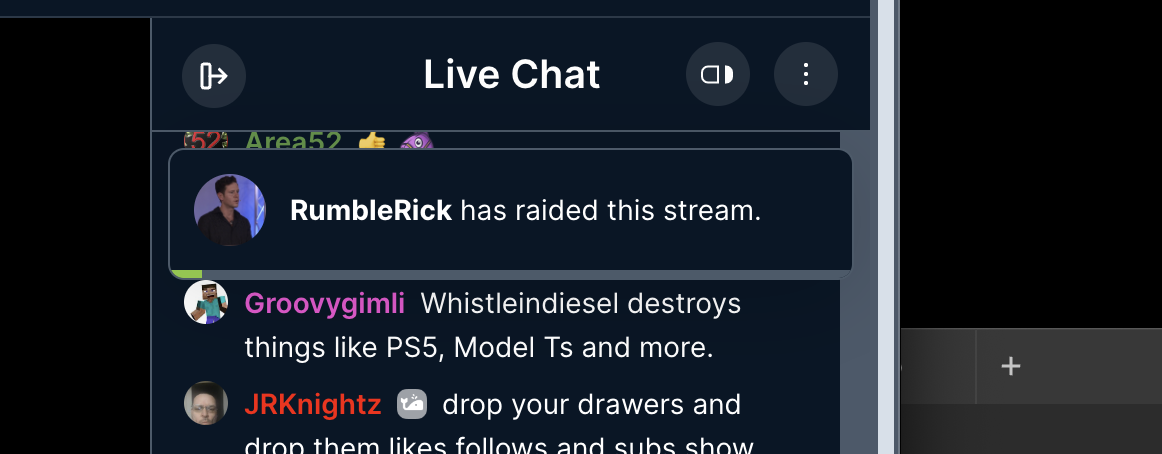
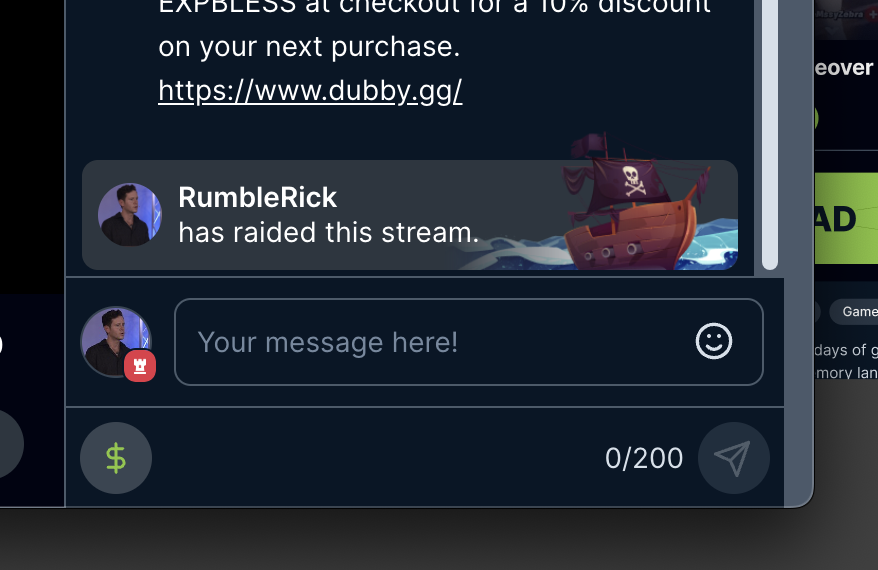
If you are a viewer in a live stream that is being raided, a notification will display near the top of the chat box and a message will display in the chat:
How To Disable Being Raided
If you are a creator and you do not want another creator to Raid your streams, you can disable by going to https://rumble.com/account/profile
If you have any questions or want to provide feedback for this experience, please email support@rumble.com